
How to Back Up Your Photos and Files: Easy Steps to Protect Your Data
In today’s digital world, our photos and important files hold great value. Losing them due to accidental deletion, hardware failure, or theft can be distressing. Regularly backing up your data ensures that your memories and important documents stay safe and can be restored when needed. This guide explains easy and practical ways to back up your photos and files.
Why Backing Up Your Data Matters
Backing up means creating copies of your files and storing them separately from your original data. This reduces the risk of losing everything if your device fails or gets damaged. Whether you have family photos, work documents, or important personal files, backups are your safety net.
Choose the Right Backup Method
There are several ways to back up your data. The best choice depends on your needs, the amount of data, and how often you want to update your backups.
1. Cloud Storage Services
Cloud storage means saving your files on the internet using services like Google Drive, Dropbox, or Microsoft OneDrive.
Advantages:
– Access files from any device with an internet connection
– Automatic syncing and backup options
– Protection against physical damage to your devices
How to Use:
– Sign up for a cloud service
– Upload your photos and files manually or set up automatic syncing
– Organize your files into folders for easy retrieval
Tips:
– Choose a plan with enough storage for your needs (some have free limited storage)
– Use strong passwords and enable two-factor authentication for security
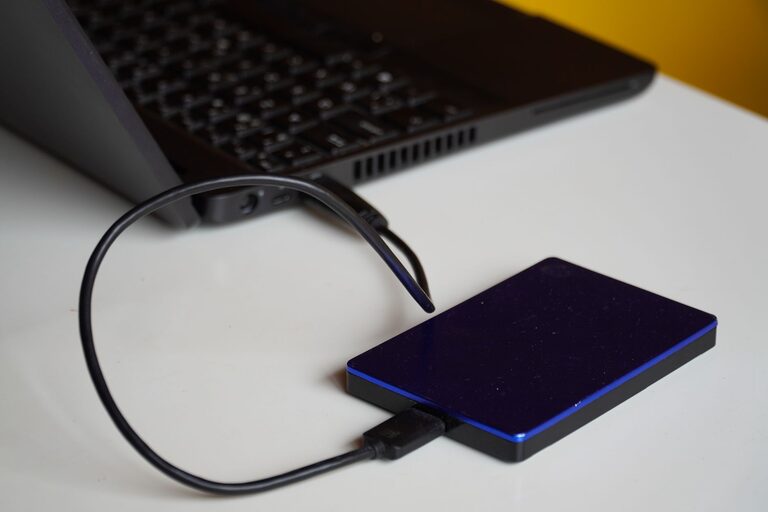
2. External Hard Drives and USB Flash Drives
Physical drives are a reliable way to have a backup stored locally.
Advantages:
– One-time cost, no monthly fees
– Fast transfer speeds, especially with USB 3.0 or newer
– Complete control over your data
How to Use:
– Connect the external drive to your computer
– Copy and paste or use backup software to save your files
– Store the drive safely, ideally in a different location than your computer
Tips:
– Regularly update your backup files to include new data
– Label your drives clearly to avoid confusion
– Use a drive with enough capacity for your needs
3. Network Attached Storage (NAS)
A NAS device is a storage unit connected to your home network, allowing multiple users and devices to back up and share files.
Advantages:
– Centralized backup solution for several devices
– Often includes backup and recovery software
– Remote access capabilities
How to Use:
– Set up the NAS on your home network
– Use the included software or settings to schedule automatic backups
– Access files from any authorized device
Tips:
– Consider a NAS with redundancy (like RAID) to protect against drive failure
– Secure your network with strong passwords
Organizing Your Backup Process
Effective backups depend on regular updates and clear organization.
Establish a Backup Schedule
Decide how often you want to back up:
– Daily: Recommended for work documents or frequently updated files
– Weekly: Suitable for most users with moderate file changes
– Monthly: Better than no backup but less secure
Set reminders or use software tools that automate backups.
Keep Multiple Copies
Follow the “3-2-1” rule:
– Keep 3 copies of your data
– Store them on at least 2 different types of media
– Keep 1 copy offsite (like cloud storage or a separate location)
This approach guards against theft, fire, or hardware failure.
Verify Your Backups
Occasionally check your backup files to ensure they are complete and not corrupted. Try restoring a few files to verify.
Additional Tips for Protecting Your Files
– Use file compression (like ZIP) to save space during backups
– Encrypt sensitive files for added security
– Clear old backups you no longer need to free storage space responsibly
Summary
Backing up your photos and files doesn’t have to be complicated or time-consuming. By selecting the right backup methods and creating a regular schedule, you can protect your valuable data against loss. Whether you choose cloud storage, external drives, or NAS, the key is consistency and good organization. Start backing up today to enjoy peace of mind tomorrow.